
Your Mac isn't infected.
Your browser is being tricked.
Carol had been avoiding her online banking for three days. A message had appeared on her laptop — bold, alarming, and unmistakably official-looking — warning that McAfee had detected an infection on her system. The licence had expired. A 55% discount was available, but only if she acted now. Carol had asked her husband if he had installed anything, but he hadn't either. But there was the warning, right there on the screen, and it wouldn't go away.
This is a browser-based scareware popup. Not a virus. Not a system alert. Not an indication that the computer itself has been hacked. Not a genuine security warning — a browser notification, carefully designed to look exactly like one. Carol's instinct to be cautious was right. The threat she feared wasn't real.
What You're Actually Looking At
The popup that appeared on Carol's screen came from a website, not from macOS, and not from any installed software. Modern browsers can display notifications that look nearly identical to system dialogs: the same visual weight, the same urgency, sometimes even the same general layout as a genuine macOS alert. Scareware designers know this. They exploit it deliberately — some even use a copy of the Mac's System Settings app to make the popup look more convincing.
The McAfee name is particularly common in these campaigns because it carries instant name recognition — and with recognition comes fear. Using a known security brand makes the message feel credible before you've had a moment to question it. It doesn't matter that McAfee isn't installed on your Mac. The popup isn't checking. It shows the same message to everyone who encounters it, regardless of what's on their machine.
Here is the single most important thing to know about fake security alerts: legitimate antivirus software does not communicate renewals through browser popups. It does not offer time-limited discounts. It does not display countdown timers. Any popup doing these things is not what it claims to be.
The Three-Second Test
Before doing anything else, open your Applications folder and look for McAfee — or whatever product the popup claims to represent. If it isn't there, the message is false. Software that isn't installed on your computer cannot report anything about its health.
This check resolves most of the anxiety immediately. The popup has no access to your files, no visibility into your system, and no information about your security status. It is displaying a pre-written script to every person who lands on that page, and it is hoping you react before you think.
Your Mac already has real security built in, running quietly in the background where you never see it — Apple keeps it updated against actual threats, without you needing to do anything. A browser popup has no way to see past that protection, and it isn't speaking for it. If your Mac had a genuine security problem, you would not be finding out through a discount offer in Chrome.
Finding and Removing the Source
The popup keeps coming back because, at some point, you clicked "Allow" on a permission request without realizing what it actually meant. Sites ask for that permission using all kinds of disguises — a fake "prove you're human" check, a button promising access to something, anything that gets you to click Allow without thinking twice about it.
Closing the notification requires revoking that permission. In Chrome, go to Settings → Privacy and Security → Site Settings → Notifications. Under "Allowed to send notifications," look for any domain you don't recognise and remove it. In Safari, go to Settings → Websites → Notifications and do the same. The domain generating the popup will typically be unfamiliar — a string of random characters or a vaguely official-sounding URL that doesn't correspond to any service you use.
While you're in your browser settings, check your installed extensions. Extensions bundled silently with free software downloads are a common delivery mechanism for persistent popups and browser redirects. Anything you didn't intentionally install should be removed.
Running a Clean Sweep
Revoking the notification permission stops the popup. If you clicked any link or button in the popup before identifying it as fake, it's worth running a sweep with Malwarebytes for Mac to confirm nothing else came in with it.
Malwarebytes targets exactly the category of software most associated with scareware campaigns: Potentially Unwanted Programs, adware, and browser hijackers. These are rarely dangerous in the way that true malware is, but they can continue generating popups and degrading your browser experience long after the original notification is gone. A free Malwarebytes scan catches and removes them. If the scan comes back clean, your Mac is fine.
Carol's was.
Calls like Carol's are common — most of the time it's exactly this: a quick check-in once a client's own instinct has already flagged something as a scam. Occasionally it's the harder version, someone who did click through and needs their computer actually checked. Wherever a call falls on that spectrum, the underlying popup is the same kind of thing, and the fix is the same size.
Keeping It from Happening Again
The default answer to any browser notification request should be no. Legitimate websites that need to reach you do so within the page — not through push notifications to your desktop. The vast majority of notification permission requests are either serving ads or, as in this case, setting up a scareware loop.
Browser notifications exist at all because of a fight websites were losing. Mobile apps could tap you on the shoulder any time they wanted — a push notification, a badge on the icon — and a website sitting in a browser tab couldn't compete once you'd clicked away. Chrome introduced browser-based push notifications in late 2014 specifically to close that gap, and every other major browser followed within a few years. It solved a real problem for website owners. It also handed scareware campaigns a second front: not just a popup on the page, but a permission that keeps generating alerts long after you've left the site that asked for it.
I don't think anyone actually needs browser notifications, and I say so to clients directly. Almost everyone I've suggested it to has been glad to turn it off entirely — one less category of interruption, and one less door scareware can walk through. Most browsers allow you to block all notification requests automatically.
In Chrome, go to Settings → Privacy and Security → Site Settings → Notifications and select "Don't allow sites to send notifications."
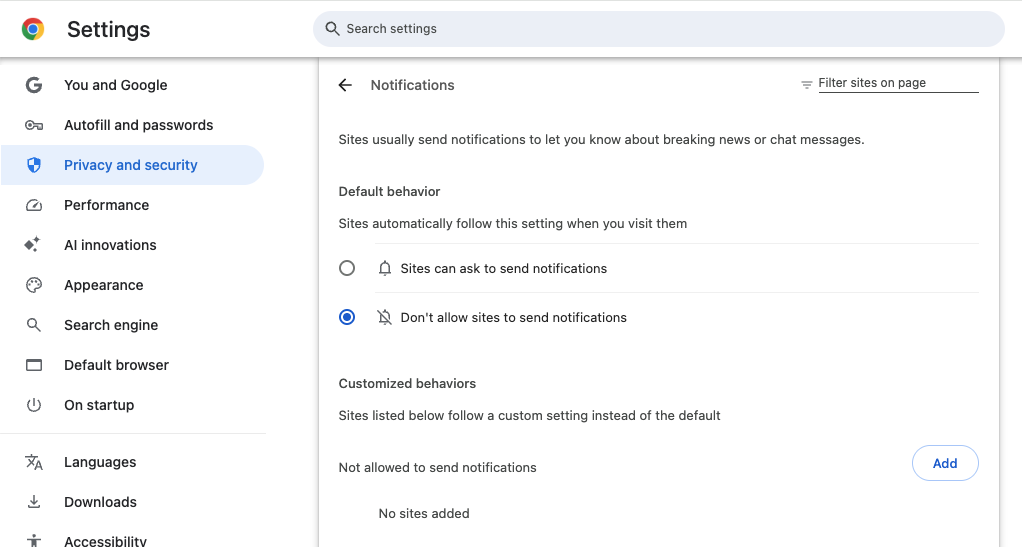
Safari offers the same control, under Settings → Websites → Notifications.
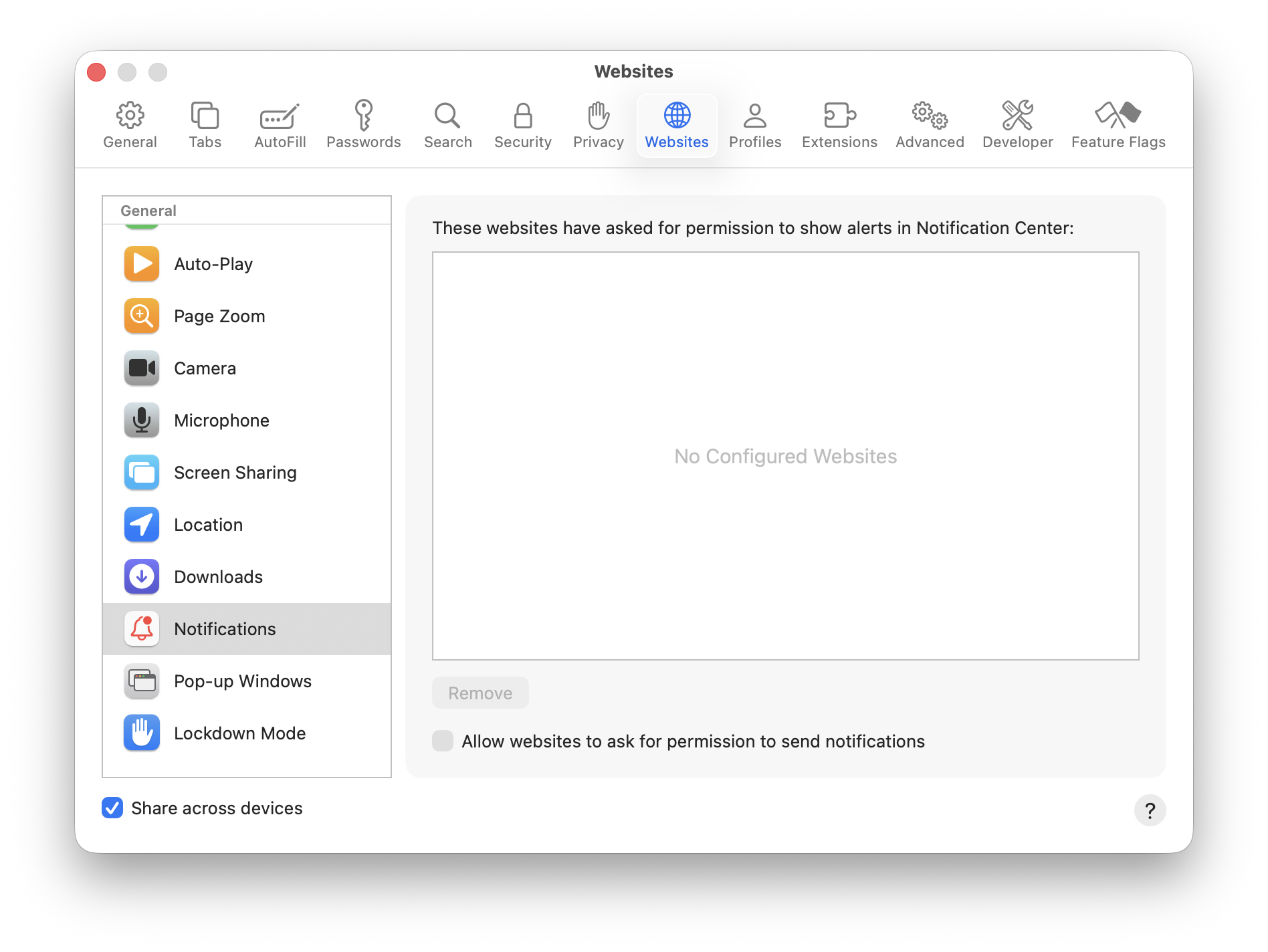
Once set, you won't be prompted again.
The broader pattern to recognise: urgency combined with a countdown or a limited-time discount is a manipulation tactic, not a technical fact. Real renewal notices come from within the software itself, from an email you can verify, or from your account portal — not from a browser popup timed to expire in four minutes.
Carol started using her online banking again the same afternoon. The threat she'd been afraid of for three days took about four minutes to resolve. That gap — between what the popup wanted her to feel and what was actually true — is the entire mechanism of the scam.
Now you know how it works. And knowing is most of the fix.

This article was developed collaboratively between Aitan Roubini and a Mac Zen AI writing partner, drawn from a real client service call about a browser-based McAfee scareware popup — one of many such interactions that inform Mac Zen's content, surfaced through an ongoing process that turns recurring client issues into public articles.
The AI writing partner produced the first draft: research synthesis, structure, and prose, built from Mac Zen's curated daily reading on digital safety and Apple security, and several published sources woven into the piece — an AppleInsider explainer on why macOS's built-in protections are usually enough on their own, and Mac Zen's own read on how browser-based fake alerts get their convincing look. Every claim about macOS's security features reflects Apple's own documented architecture; Malwarebytes is referenced the way Aitan actually recommends it to clients — a trusted tool for a post-incident sweep, not a primary defence.
From there, the piece was shaped through the same back-and-forth that produces every Mac Zen article: Aitan reviewed, tightened, and added directly from his own practice — the real frequency and range of these calls, the detail that some of these popups mimic macOS's own System Settings app to look more convincing, and a fuller explanation of why browser notifications exist as a feature at all, and why he tells nearly every client to simply turn them off. Two screenshots, walking through disabling notifications in Chrome and Safari, were added so the fix is something you can follow along with, not just read about.
The header image is AI-generated, made through a real back-and-forth of its own — the first two attempts at capturing “the moment the fear leaves the body” didn't land, and it took a specific, deliberate choice (a genuine laugh, hand to the forehead, the very human “I can't believe I fell for that” gesture) before the image actually matched what this article is about.
The client's identity has been changed throughout. The fear response described in the article — avoiding online banking for days over a popup that turned out to be nothing — is genuine and typical, and it's the emotional centre the whole piece is built around. Final judgment on what's said, and how, is Aitan's.
If you have questions about anything in this piece, or want to know more about how it was made, get in touch — we're glad to talk about it.
Sources:
• AppleInsider, “The best antivirus for Mac is none at all” (2023-03-18) — informed “The Three-Second Test”: macOS's built-in security as adequate defence without third-party antivirus.
• Lifehacker, “Mac new phishing scheme” (2025-03-20) — informed “What You're Actually Looking At”: how fake alerts are built to mimic real system dialogs and exploit urgency, drawn from a related (not identical) attack pattern.
• Malwarebytes, malwarebytes.com/mac — informed “Running a Clean Sweep”: Mac Zen's standing recommendation for a post-incident scan. A live product page rather than a dated article; confirmed accurate as of 2026-08-15, the date it was checked.
